
Remote Hosting
The two components of Caido's client/server based architecture are the:
- Caido CLI: The server component that handles proxied network traffic.
- Caido GUI: The client component that provides the user interface.
The Caido desktop application installs both components.
However, the Caido CLI can be installed as a standalone binary.
Once the binary is launched, the Caido GUI becomes available as a browser web application. This allows you to install and run the Caido CLI on a remote server and access the instance from your local device.
This versatility is especially useful for facilitating collaboration between Caido Team members by allowing them to access a shared instance and the workspace projects it contains, from their separate devices.
NOTE
True multi-user instance usage is not yet available. However, data can be shared between members via the Drop plugin.
In this tutorial, you will learn how to host Caido remotely in a variety of ways.
Downloading & Launching the Caido CLI
The Caido CLI is available as either a standalone binary or a Docker image container.
Standalone Binary
To list the latest release of the Caido CLI for your device's operating system, enter:
curl -s https://caido.download/releases/latest | jq -r '.links[] | select(.os=="linux" and .kind=="cli") | .link'To download the Caido CLI, replace <url> in the following command with the appropriate link for your operating system architecture:
curl -L -o caido-cli.tar.gz <url>To extract the Caido CLI binary from the downloaded archive, enter:
tar -xzf caido-cli.tar.gzDANGER
Running Caido with root/administrative privileges is NOT recommended. Doing so will create issues later on since any resource created by Caido will be owned by the root/administrator user. DO NOT DO THIS.
Once the binary is extracted, to launch the Caido CLI, enter:
./caido-cliDocker Image Container
The Caido CLI can also be launched as a Docker image container. To download the latest release, ensure Docker Engine is installed and the Docker daemon is running (sudo systemctl status docker) or launched (sudo systemctl start docker), and enter:
sudo docker pull caido/caidoBy default, Caido projects are not saved between docker run commands. To persist project data, create a directory on the remote host (e.g. ~/caido-docker):
mkdir ~/caido-dockerNext, obtain the uid and gid of the caido user in the Docker container:
sudo docker run --rm caido/caido:latest idTo grant ownership of the directory (e.g. ~/caido-docker), replace <uid> and <gid> in the following command with the uid and gid of the caido user:
sudo chown -v -R <uid>:<gid> ~/caido-dockerTo launch the image container, publish the container's port to an unused port (e.g. 7000) on the remote host and specify the absolute path to the created directory on the remote host as the volume mount (e.g. /home/ninjeeter/caido-docker):
sudo docker run --rm -p 127.0.0.1:7000:8080 -v /home/ninjeeter/caido-docker:/home/caido/.local/share/caido caido/caido:latestAccessing the Instance via SSH
Once the Caido CLI is launched, you can access the Caido GUI over an SSH tunnel.
To connect to an instance, open a new terminal and replace <local-port> with an unused port on your local device and replace <username> and <remote-host> with the username and IP address of the remote host:
# Standalone Binary
ssh -L <local-port>:127.0.0.1:8080 <username>@<remote-host>

# Docker Image Container
ssh -L <local-port>:127.0.0.1:7000 <username>@<remote-host>
In a browser on your local device, navigate to http://127.0.0.1:<local-port> to access the Caido GUI.
Exposing an Instance to the Internet
Alternatively, you can serve the Caido GUI from a domain.
DANGER
By default, Guest Mode is disabled for the Caido CLI. If Guest Mode is enabled, the Caido instance will be publicly accessible without authentication. For security and confidentiality, ensure Guest Mode is disabled and avoid the --allow-guests command-line option when launching the Caido CLI before exposing an instance to the internet.
Nginx Configuration
To logically separate the internet-exposed Caido instance from your existing setup, create a new subdomain (e.g.
caido.example.com) by adding an A record for the IP address of your server.SSH into your server.
Create a new
sites-availablefile for the domain and use theproxy_passdirective to route traffic to Caido:
sudo nano /etc/nginx/sites-available/caido.example.comserver {
server_name caido.example.com;
location / {
proxy_pass http://127.0.0.1:8081;
proxy_set_header Host $host;
proxy_set_header X-Real-IP $remote_addr;
proxy_set_header X-Forwarded-For $proxy_add_x_forwarded_for;
proxy_set_header X-Forwarded-Proto $scheme;
proxy_set_header Upgrade $http_upgrade;
proxy_set_header Connection "upgrade";
proxy_http_version 1.1;
}
listen 80;
listen [::]:80;
}- Make the site available, test the configuration, and reload the web server:
sudo ln -s /etc/nginx/sites-available/caido.example.com /etc/nginx/sites-enabled/sudo nginx -tsudo systemctl reload nginx- Obtain an SSL/TLS certificate:
sudo certbot --nginx -d caido.example.com- Launch the Caido CLI:
./caido-cli --ui-listen 127.0.0.1:8081 --proxy-listen 127.0.0.1:8082 --ui-domain caido.example.com --debug --no-renderer-sandbox --no-open- Navigate to the domain specified by
--ui-domainto access the Caido GUI.
Docker & Traefik Configuration
Caido can also be served from a domain with Docker and Traefik.
NOTE
Ensure to replace user with your username, caido.example.com with your domain, user@example.com with your email address, and account for any currently running processes by changing the ports.
SSH into your server.
Create a
docker-compose.ymlfile with the following content:
services:
  caido:
    image: caido/caido:0.55.3
    container_name: caido
    ports:
      - "127.0.0.1:8082:8082"
    volumes:
      - /home/user/caido/data/:/home/caido/.local/share/caido
    command: >
      caido-cli
      --no-renderer-sandbox
      --debug
      --no-open
      --ui-listen 0.0.0.0:8080
      --ui-domain caido.example.com
      --proxy-listen 0.0.0.0:8082
    restart: unless-stopped
    labels:
      - "traefik.enable=true"
      - "traefik.http.routers.caido.rule=Host(`caido.example.com`)"
      - "traefik.http.routers.caido.entrypoints=websecure"
      - "traefik.http.routers.caido.tls.certresolver=letsencrypt"
      - "traefik.http.services.caido.loadbalancer.server.port=8080"

  traefik:
    image: traefik:v3.6
    container_name: traefik
    restart: unless-stopped
    ports:
      - "80:80"        # HTTP
      - "443:443"      # HTTPS / TLS termination
    command:
      - "--providers.docker=true"
      - "--providers.docker.exposedbydefault=false"
      - "--entrypoints.web.address=:80"
      - "--entrypoints.websecure.address=:443"

      # Redirect HTTP → HTTPS
      - "--entrypoints.web.http.redirections.entrypoint.to=websecure"
      - "--entrypoints.web.http.redirections.entrypoint.scheme=https"

      # Let’s Encrypt
      - "--certificatesresolvers.letsencrypt.acme.tlschallenge=true"
      - "--certificatesresolvers.letsencrypt.acme.email=user@example.com"
      - "--certificatesresolvers.letsencrypt.acme.storage=/letsencrypt/acme.json"

    volumes:
      - /var/run/docker.sock:/var/run/docker.sock:ro
- ./letsencrypt:/letsencrypt- Create a data storage location for Caido (e.g.
/home/user/caido/data):
mkdir -p /home/user/caido/data- Grant ownership of the directory to the
caidouser:
sudo chown -R 996:996 /home/user/caido/data- Make the directory writable:
sudo chmod -R 777 /home/user/caido/dataNOTE
If Nginx is running, kill the process before continuing:
sudo systemctl stop nginx- Then, run the container to launch Caido:
sudo docker compose up- Navigate to the domain specified by
--ui-domainto access the Caido GUI.
NOTE
If you encounter authorization errors, click on the account button in the top-right corner of the Caido user-interface and select Logout to reauthenticate.
Creating Remote Instances from the Desktop Application
Once the Caido CLI is running and the domain is accessible, additional instances can be created via the launch window of the desktop application.
To create a new instance:
Open the launch window and click on the
New instancebutton.Select the
Remotetab, name the instance, specify the domain name and port, and click on theCreatebutton.
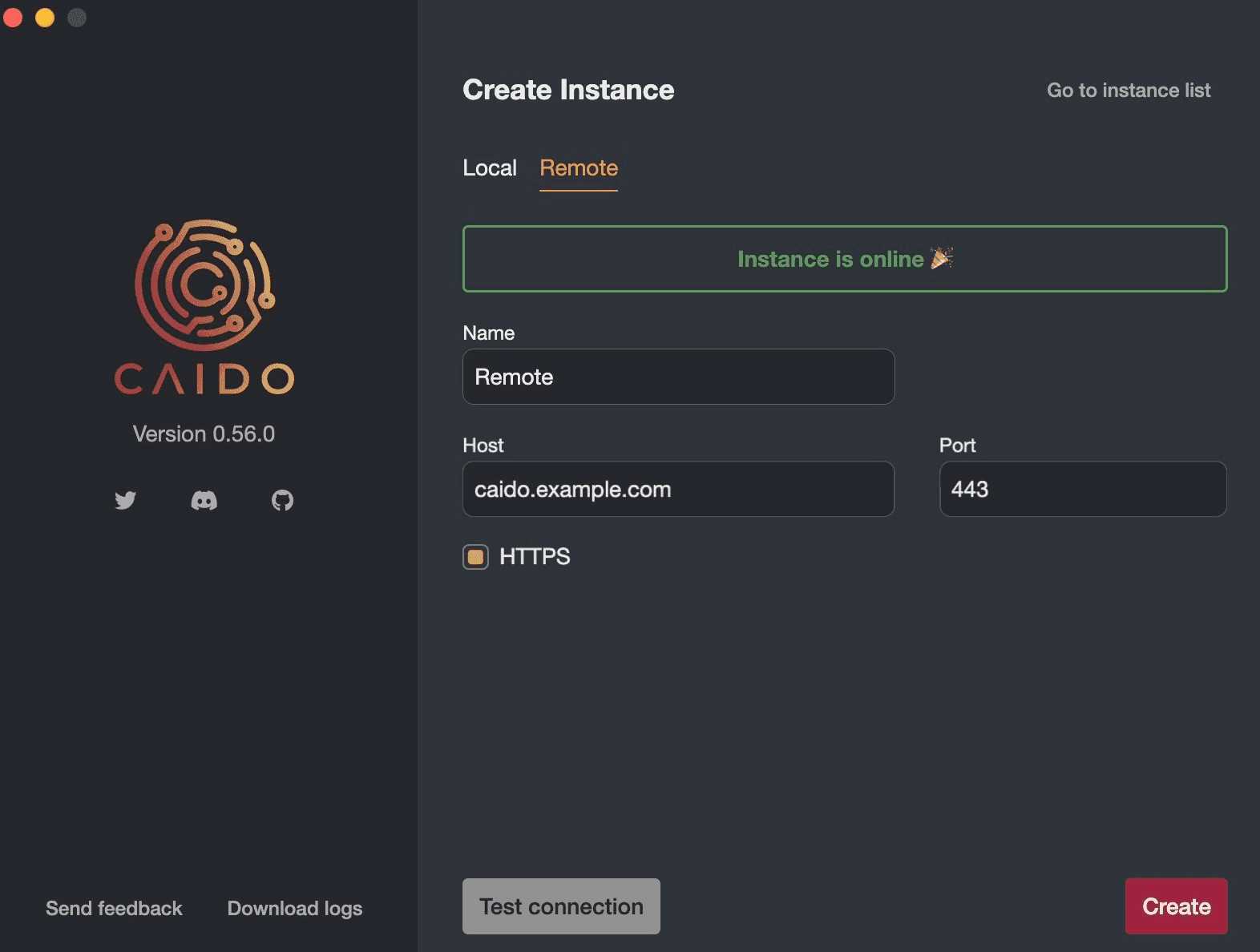
Once authenticated, the remote instance GUI will be available via the desktop application.
TIP
To automate headless Caido instances via scripting, view the Orchestrating Caido Headless tutorial.